
If Movavi Clips crashes, does not launch, or works incorrectly, the issue is usually related to:
corrupted app cache;
insufficient device resources;
unstable project data.
Start Here
1. Clear App Cache
Refreshing the cache resolves many launch and stability issues.
⚠️ Clearing app data may remove the current project stored inside the app.
Open Settings on your phone.
Go to Applications / Apps.
Find Movavi Clips.
Select Storage & cache
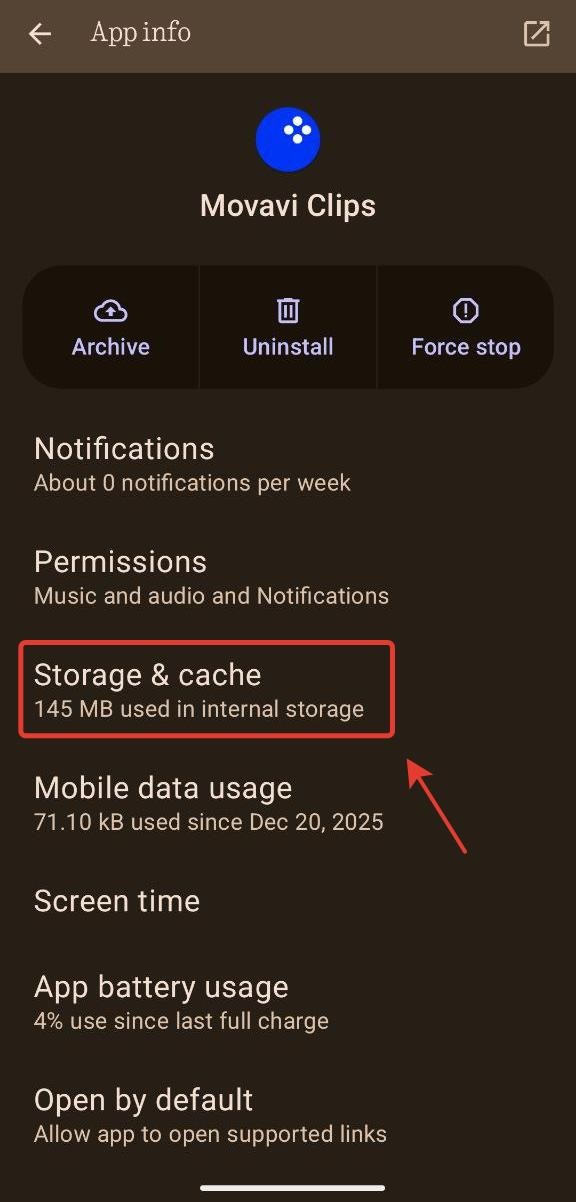
Tap Clear Cache.
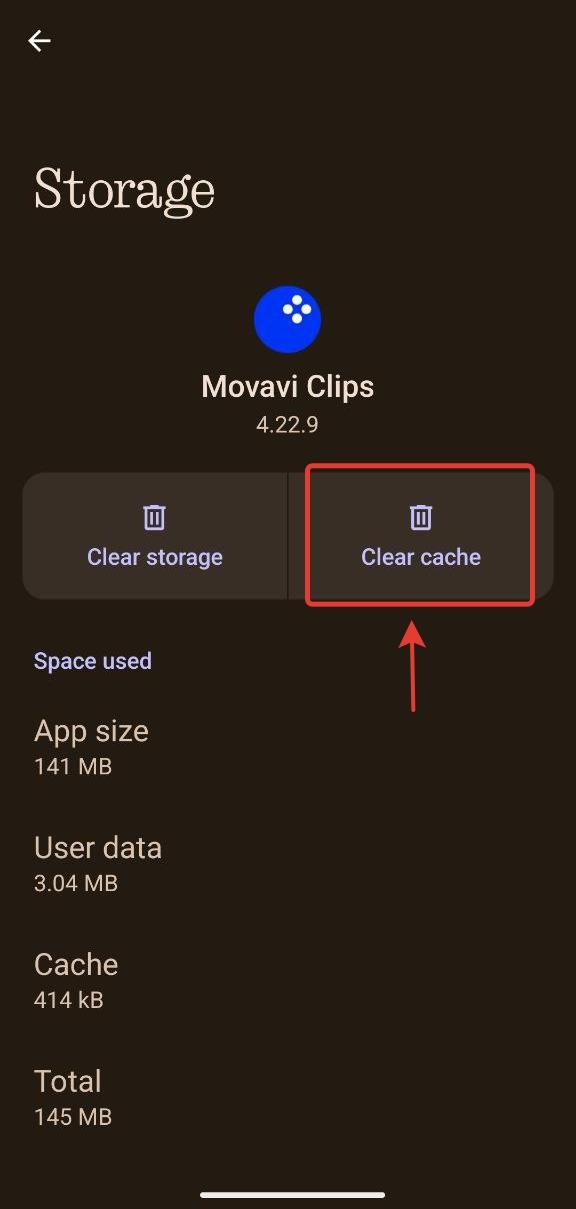
Launch the app again and check if it starts normally.
2. Reduce Project Load (If the App Opens but Doesn’t Work Correctly)
If the app launches but export or editing fails:
remove stickers;
remove transitions;
try saving the project again.
If export works after removing effects, the issue is related to device resources.
3. Reinstall the App
If clearing cache does not help, reinstall Movavi Clips.
⚠️ Reinstalling deletes the project stored inside the app.
Remove the app from your device.
Install it again from the app store.
Launch the app and check performance.