
If you were charged immediately after signing up for a free trial subscription of Movavi – Video Editor for iOS, it usually means the trial was not available for your account.
How the Free Trial Works
The free trial subscription is available only for users who have never used a trial for:
Movavi – Video Editor for iOS,
or the previous version of the app (Movavi Clips).
If you have used a trial for either app in the past, the system will not activate another free trial, and the subscription will start immediately with a charge.
Important
Purchases made through the Apple App Store do not appear in your Movavi account at movavi.id. All subscription management and purchase history must be checked directly through Apple.
Common Reasons for Immediate Charges
You already used the trial before
Once a trial is used for an app, it cannot be reactivated. This applies even if:
you tried the trial a long time ago,
you uninstalled the app before the trial ended.
You signed up for the previous version
If you previously tried Movavi Clips (the older version), you are not eligible for a new trial in Movavi – Video Editor.
The trial period is not available in your region
In some cases, trial availability may vary by region or store.
What to Check
Check your Apple purchase history
Open the Settings app on your iPhone or iPad.
Tap your Apple ID at the top.
Tap Media & Purchases → View Account (you may need to sign in).
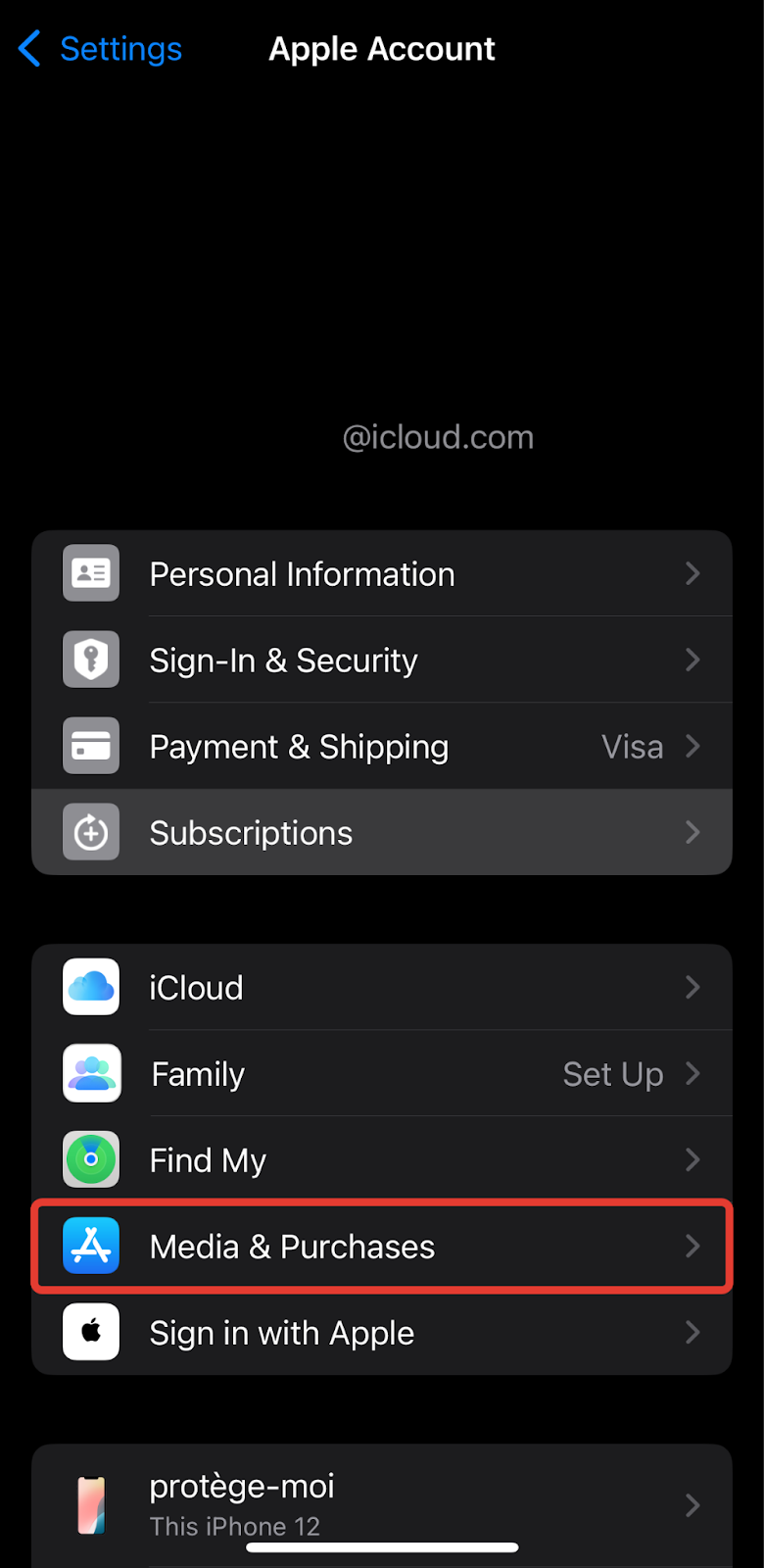
Tap Purchase History to find the charge.
This will show you when the charge was made and confirm whether it was processed immediately after sign-up.
How to Stop Future Charges
To prevent renewal at the end of the current billing period, cancel the subscription through your Apple ID:
Open Settings on your iPhone or iPad.
Tap your Apple ID at the top.
Tap Subscriptions.
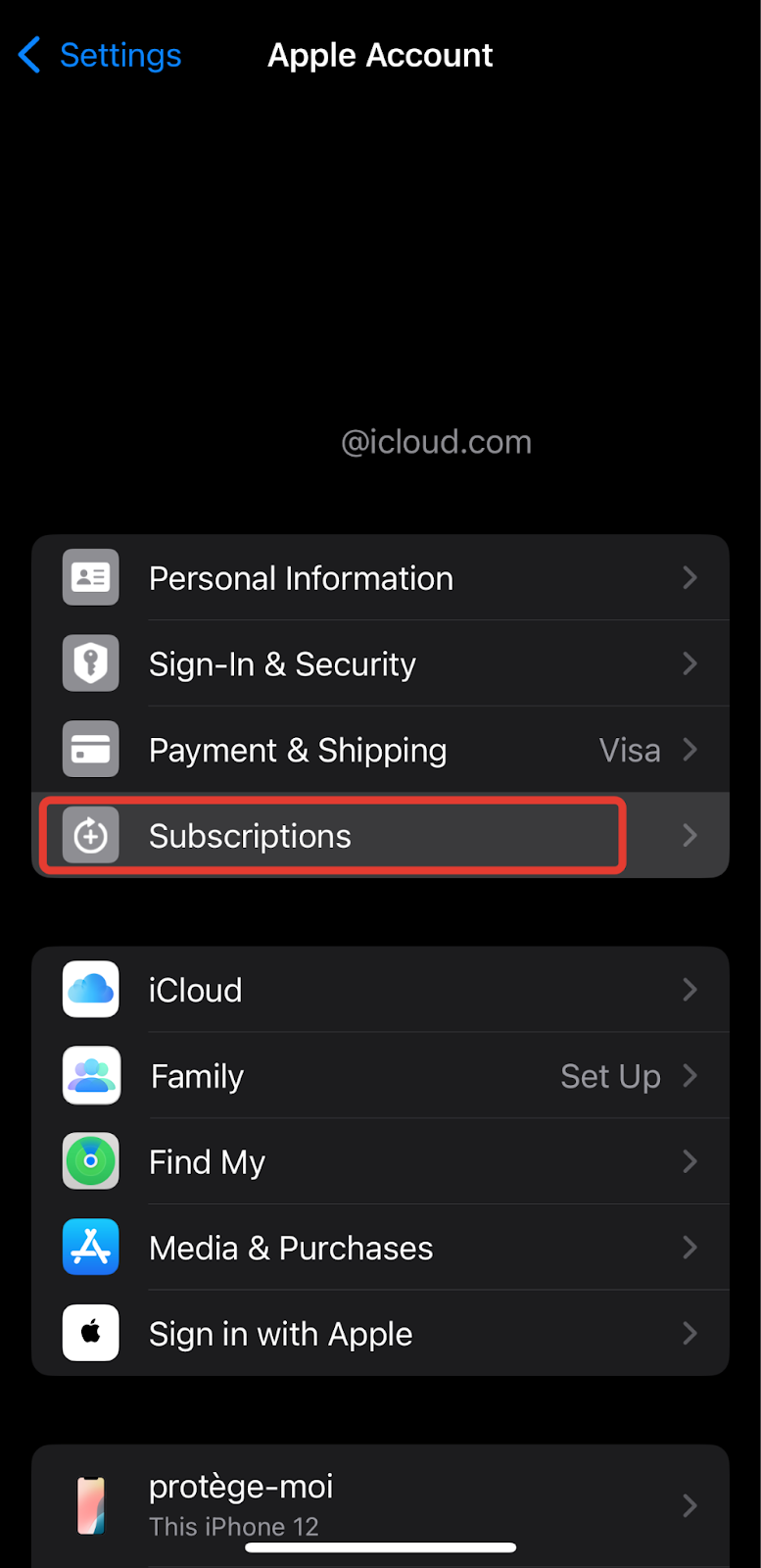
Select the Movavi subscription.
Tap Cancel Subscription.
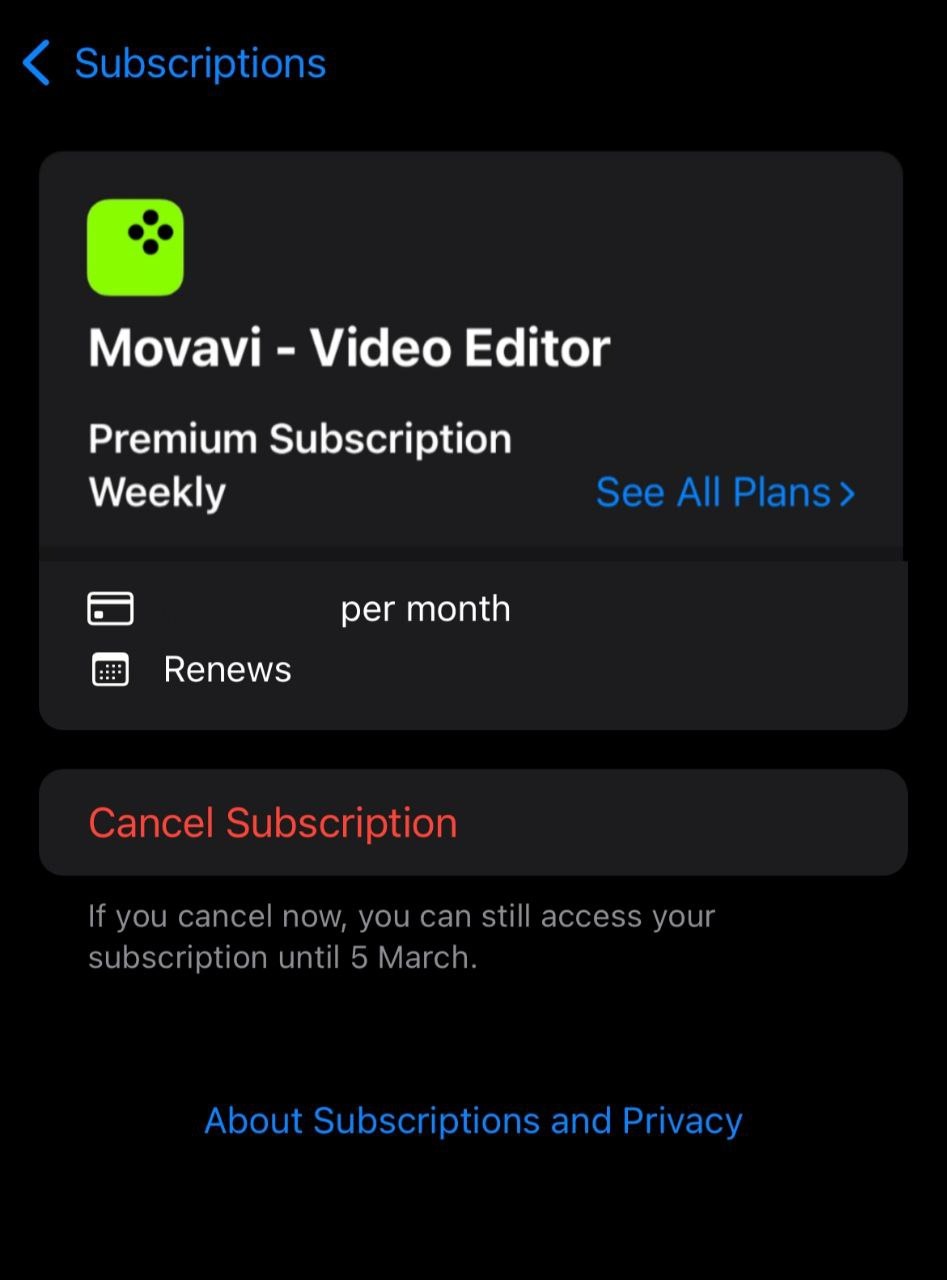
After cancellation:
future renewals are stopped,
access remains available until the end of the current billing period.
Requesting a Refund
Refunds for App Store purchases are handled exclusively by Apple.
To request a refund:
Go to Apple's refund request page.
Sign in with your Apple ID.
Find the Movavi – Video Editor charge and submit a refund request.
Refund decisions are made by Apple in accordance with their policies. Movavi cannot process refunds for App Store purchases.