
If a project cannot be saved or exported in Movavi Clips, the issue is usually related to:
insufficient device resources;
corrupted app cache;
complex effects used in the project;
low available storage space.
Start Here
1. Clear App Cache
Clearing cache refreshes temporary app data.
⚠️ Clearing app data may remove the current project stored inside the app.
Open Settings on your phone.
Go to Applications / Apps.
Find Movavi Clips.
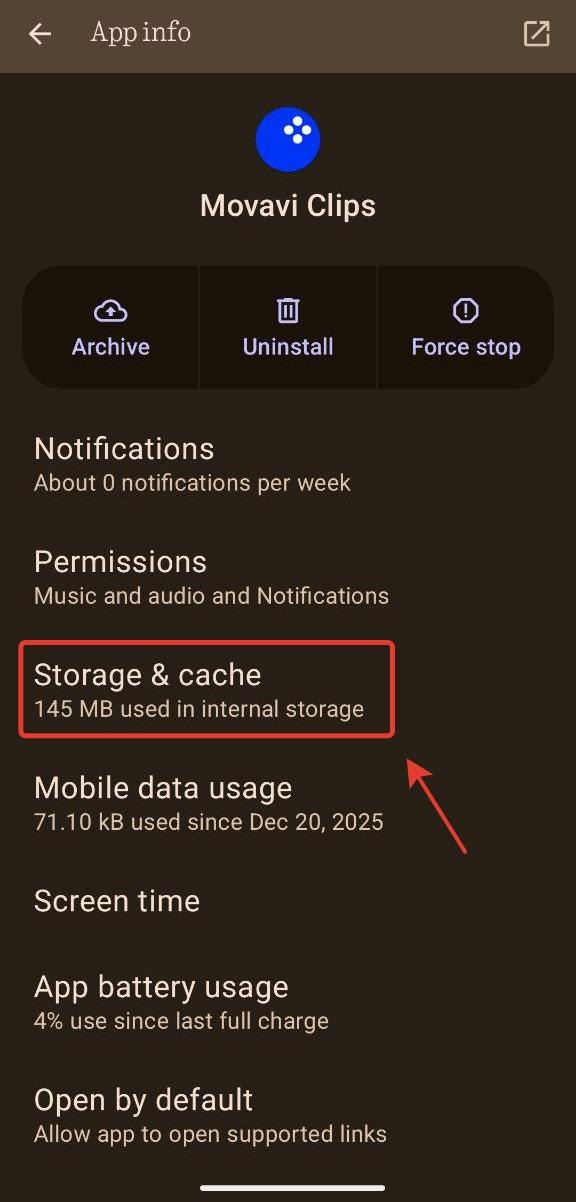
Select Storage & cache
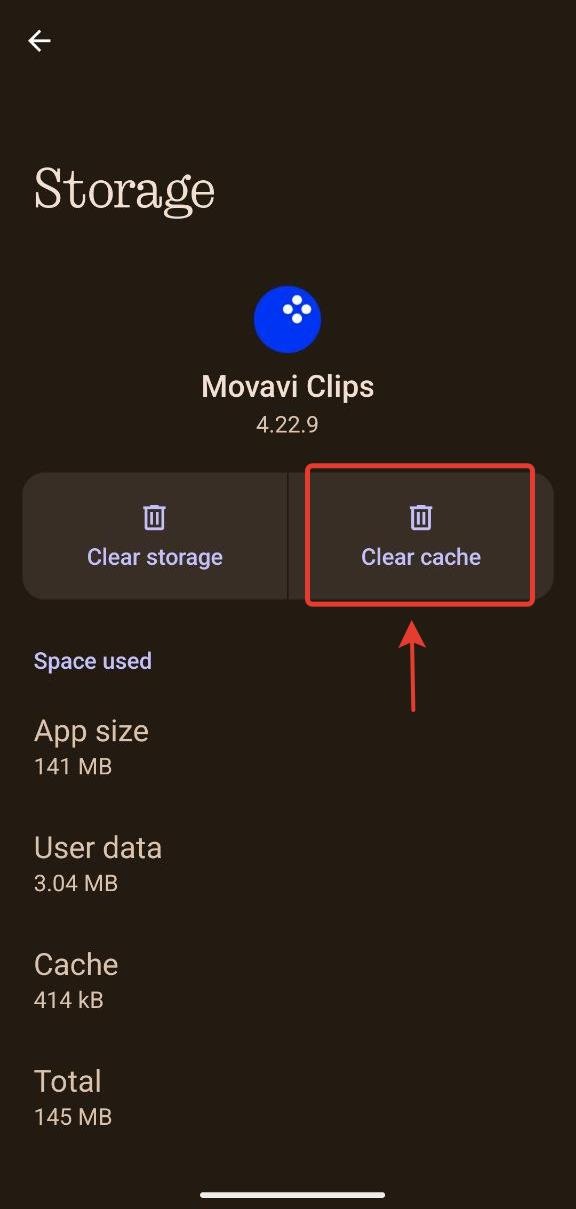
Tap Clear Cache.
Launch the app again and try exporting the video.
2. Check Device Storage
Make sure your device has enough free space.
Open Settings → Storage.
Free up space if needed.
Try exporting again.
3. Reduce Project Load
Large projects or heavy effects may prevent export.
Try the following:
remove stickers;
remove complex transitions;
export a shorter fragment first.
If export works after removing effects, the issue is related to device resources.
4. Clear RAM (Only for Low-Memory Devices)
This step is only useful for devices with 4 GB RAM or less. Most modern devices do not require manual RAM clearing.
If you are using an older or low-memory device, try one of the following:
Close apps you are not using from the multitasking menu.
Restart your device to clear temporary memory.
On Samsung devices: go to Settings → Battery and device care → Memory → Clean now.
This can free up system resources and help the app run more smoothly.
5. Reinstall the App
If the issue persists, reinstall Movavi Clips.
⚠️ Reinstalling deletes the project stored inside the app.
Remove the app from your device.
Install it again from the app store.
Launch the app and check performance.
You do not need to pay again.